Screen Image
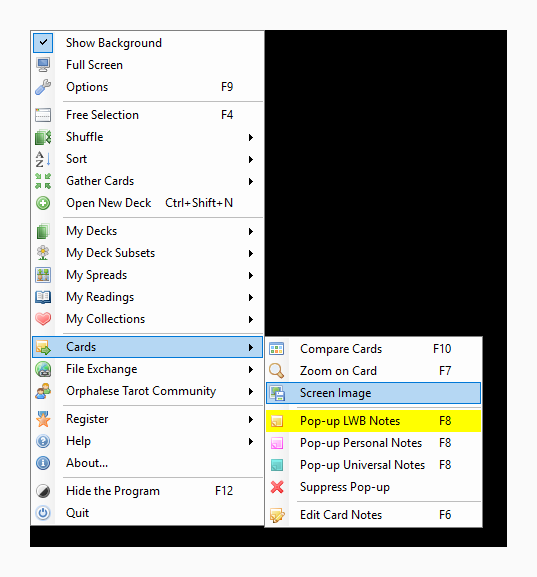
The Screen Image tool is launched by clicking Screen Image on the Cards Menu.
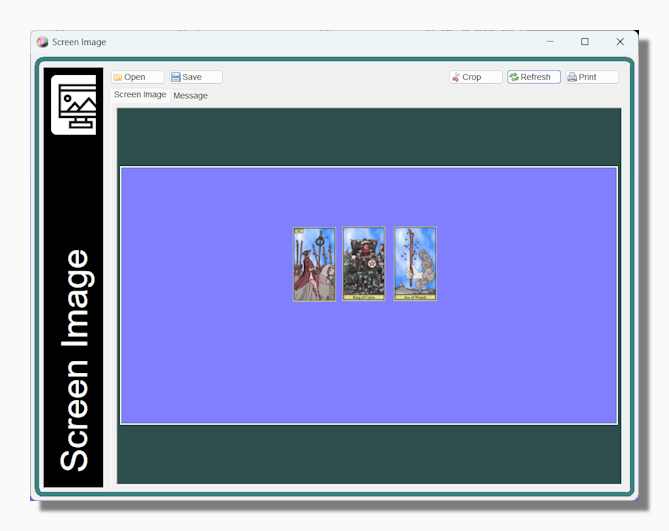
This form lets you take a quick screen capture without any unnecessary clutter such as the deck itself or anything else on screen. You can click and drag with your mouse to draw a dotted line around any part of the screen...
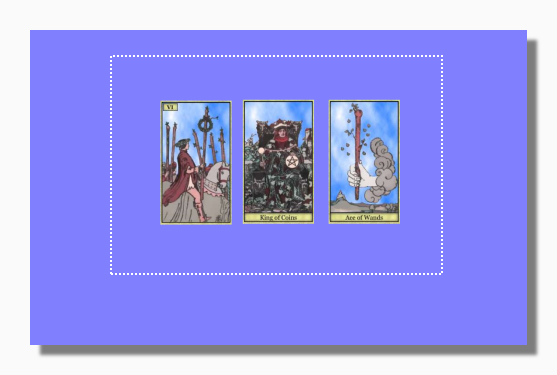
...and then use the Crop button to restrict the image to the selected area and enlarge it.
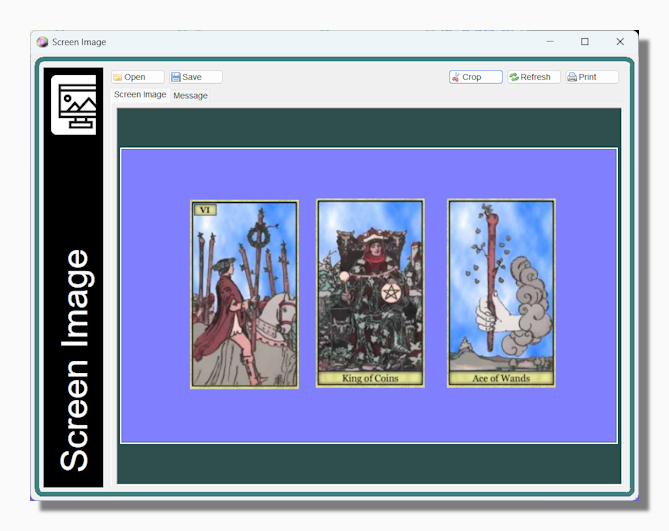
The Refresh button can be used to refresh what is on the screen if the cards have been moved.
On the second tab you have some tools to email the image.
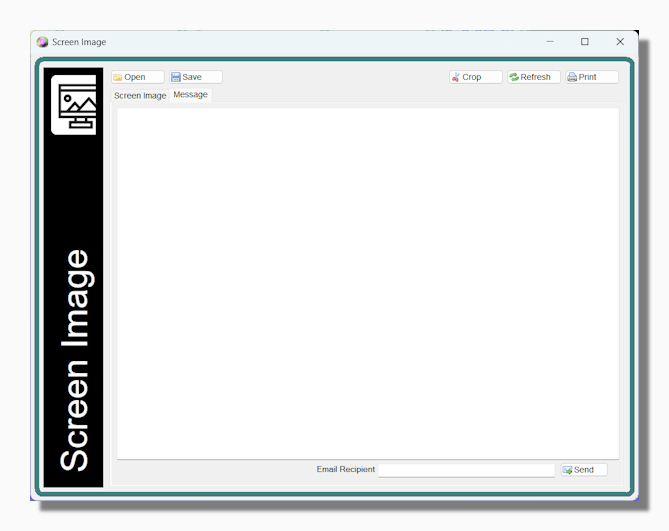
When you press send the program will open your default email client and start a new email with the image as an attachment and any text you have added as a message. This is different behaviour from earlier versions of the program which sent an email directly. It has the advantage that you have a record of the outgoing email and also the program does not require separate configuration as an email client.
Tip: If you have not already saved the image when you press Send you will be prompted to save the image first. You have to save the image somewhere on your computer before it can be attached to the email.